DaVinci Resolve 21 (not) a replacement for Lightroom
Last week, Blackmagic Design released the final version 21 of DaVinci Resolve. After a multi-phase beta phase, in addition to improvements in the video editing area, completely new features have been added.
Introduction

Predominantly interesting is the new Photo Page, which makes it possible to edit RAW files from different camera manufacturers directly in DaVinci Resolve. Among other things, formats from Nikon, Canon, Sony and now also Panasonic LUMIX are supported.
Due to this innovation, some content creators – especially on YouTube – currently claim that the Lightroom photo subscription becomes unnecessary and that DaVinci Resolve 21 would be a full-fledged replacement for Lightroom.
I also recorded a video:
The new photo page
The new Photo Page allows you to import photos directly into the Media Pool and edit RAW files there. The imported images are integrated into a photo album, which takes over the function of a timeline in the video area.
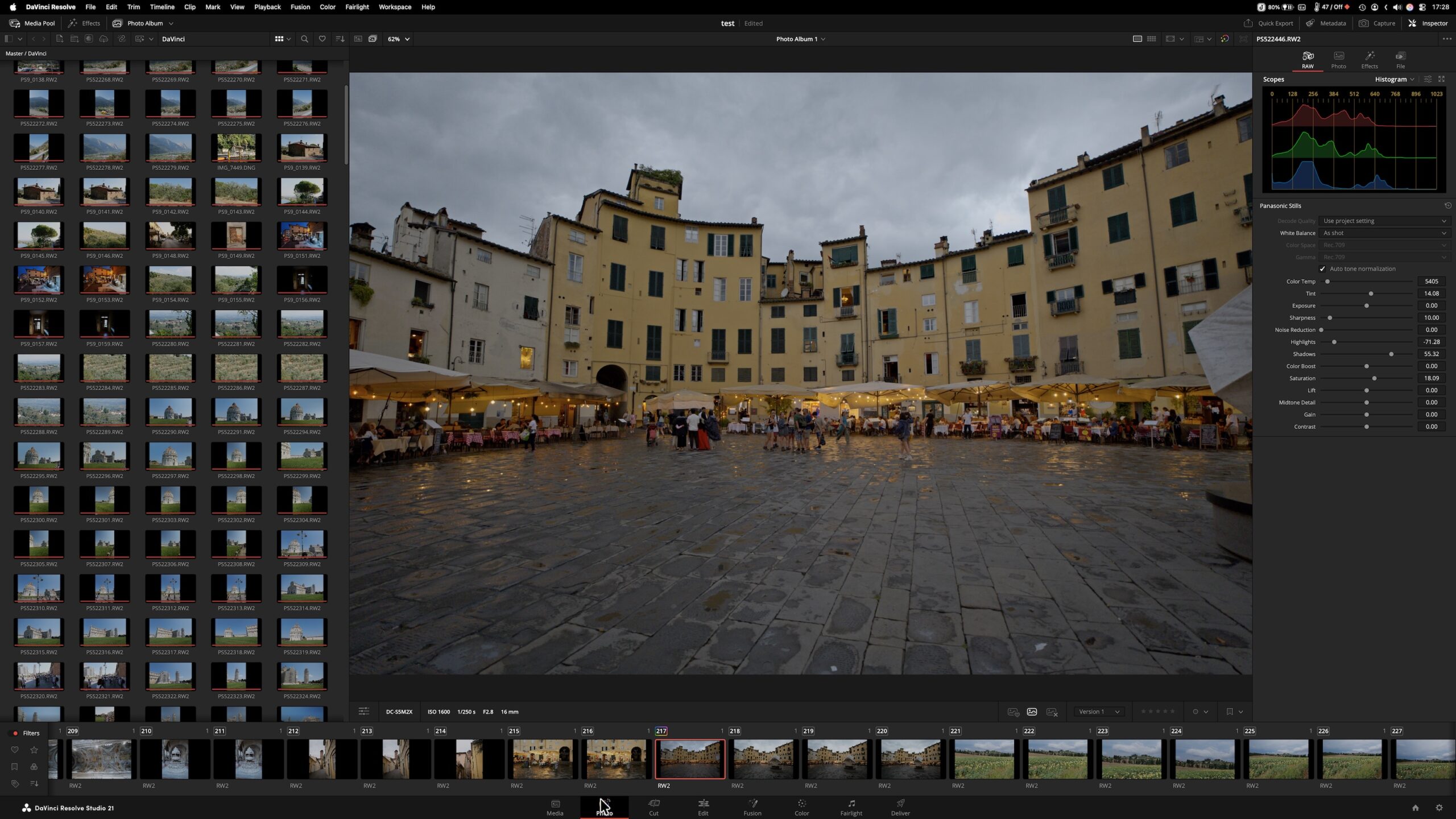
The Photo Page allows you to manage and edit photos and video clips within a single project and in a single application—DaVinci Resolve 21. There is no need to constantly switch between different programs.
By directly supporting RAW formats, you can also work with full image quality. Image sections can be defined directly in DaVinci Resolve and then seamlessly integrated into a video project.
RAW processing includes the usual basic adjustments such as white balance, depths, heights, highlights or exposure – i.e. functions that are also known from other image processing programs.
In addition, images can be trimmed, aligned or perspective distortions can be corrected, as they occur, for example, when shooting with extreme wide-angle lenses.
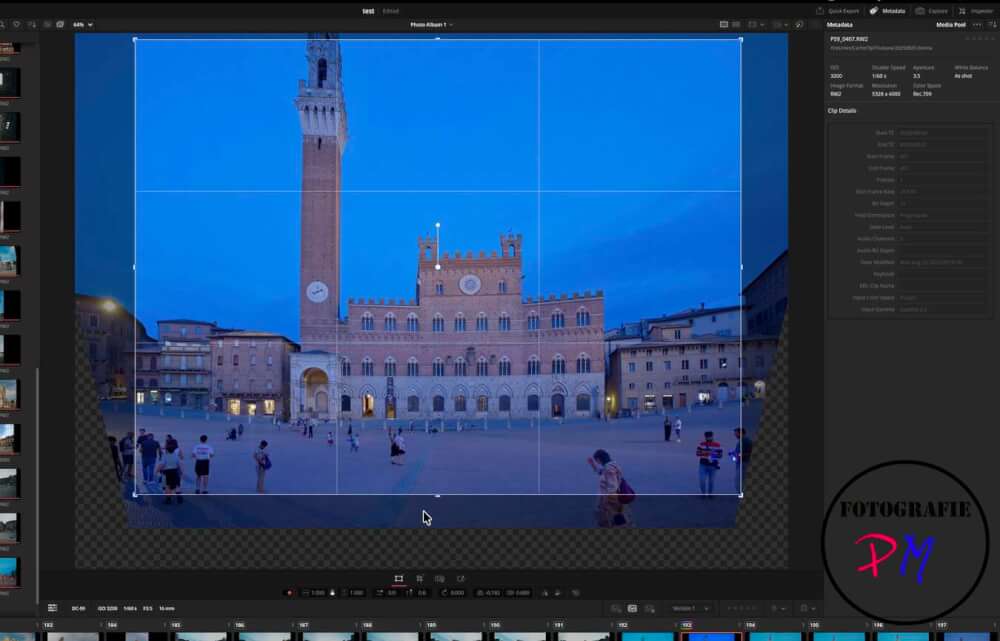
After editing in the Photo Page, the images can be further processed directly in the Fusion Page or – much more often – in the Color Page. There are extensive possibilities for color corrections and creative effects available. In the following example, I have, for example, artificially added sun rays in a reflection – a task that can be implemented very comfortably in DaVinci Resolve.

Import Lightroom catalogs
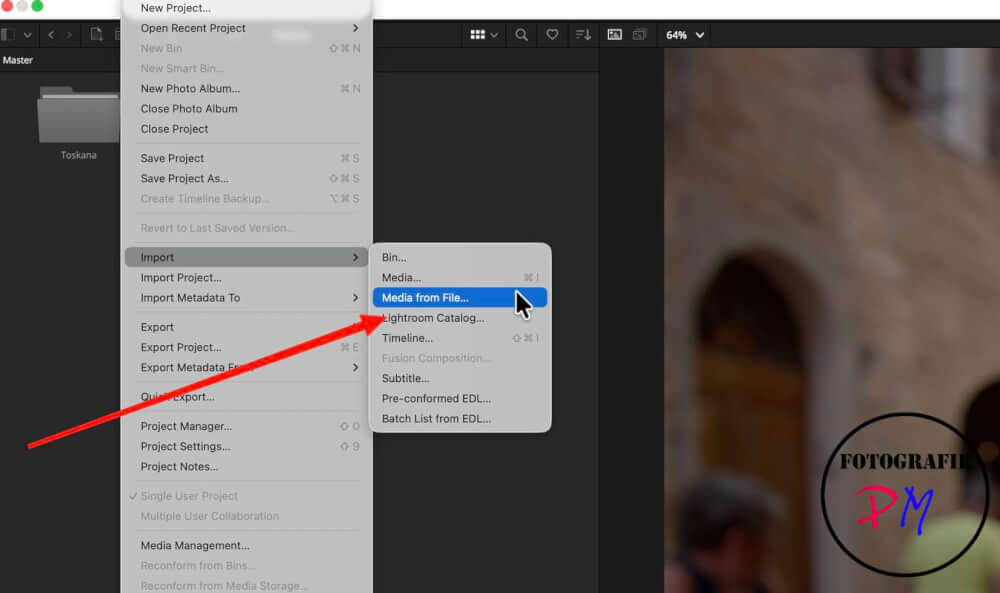
DaVinci Resolve also offers the ability to import a Lightroom catalog directly. I first tested this with my smaller blog photo catalog.
Although this only includes about 5,500 images, the import already takes a relatively long time. In addition, the imported images are then only within the current project and are – unlike Lightroom – not available across projects.
Exceptions are so-called Power Bins. If the images are stored there, they can be used in each project with appropriate configuration. With the help of Smart Bins, the images can also be sorted according to criteria such as camera, properties or metadata.
However, this does not replace complete image management, as DaVinci Resolve is basically project-oriented and is not designed for global catalog management. In addition, the focus of the software is naturally on video editing and not on photography-specific management functions.
The import of my actual photo catalog with almost 80,000 pictures I therefore did not carry out due to time constraints.
Results and problems
For a first version, which allows the processing of RAW files from four different camera systems, the Photo Page is already surprisingly successful.
The combination of photo album, RAW development and subsequent editing in the color page with effects and color corrections works very convincingly overall.
However, there are still some problems at the moment.
DNG support
In particular, DNG files that I created for space reasons in Lightroom are often displayed much too brightly and additionally have a purple tint. Here, manual post-processing is currently required.

I could also observe a similar behavior with older camera models, for example with RAW files of my previous Canon EOS 5D Mark I.
Export quality
Another topic concerns photo export. I exported and compared raw RAW files from both DaVinci Resolve and directly from Lightroom Classic.

The images generated by Lightroom Classic appear a little sharper or more detailed than the exports from DaVinci Resolve. Possibly this is due to Lightroom’s default gradation settings, but the difference was noticeable in direct comparison.
Quick Export
The Quick Export supports numerous formats such as HEIF, JPEG or TIFF, but the configuration of the file naming is not solved particularly intuitively. Many of the variables used obviously come from the video area and are less relevant to photographers – unless the images are used directly within a video project.
Conclusion
DaVinci Resolve has been providing excellent video editing for a long time. With the new Photo Page, which now also allows the development of RAW files within the same application, a big step towards integrated media editing has been achieved.
I assume that Blackmagic Design will further expand this feature in future versions.
Nevertheless, I would be cautious about the statement that DaVinci Resolve can completely replace Lightroom. Certainly it is a great advantage to be able to edit photos and video clips together in one application without having to switch between programs or export files.
However, the crucial difference lies in the way it works: while DaVinci Resolve works project-oriented, Lightroom offers global catalog management and a much more mature photo workflow. For pure photographers, Lightroom remains the more comprehensive solution.
ciao tuxoche


