Logitech MX Keys Mini and MX Master 4
After almost 6 years, I thought that my combination of the Logitech MX Keys and the MX Master had needed a refresher 3 times, so I started looking for a suitable successor.
Introduction
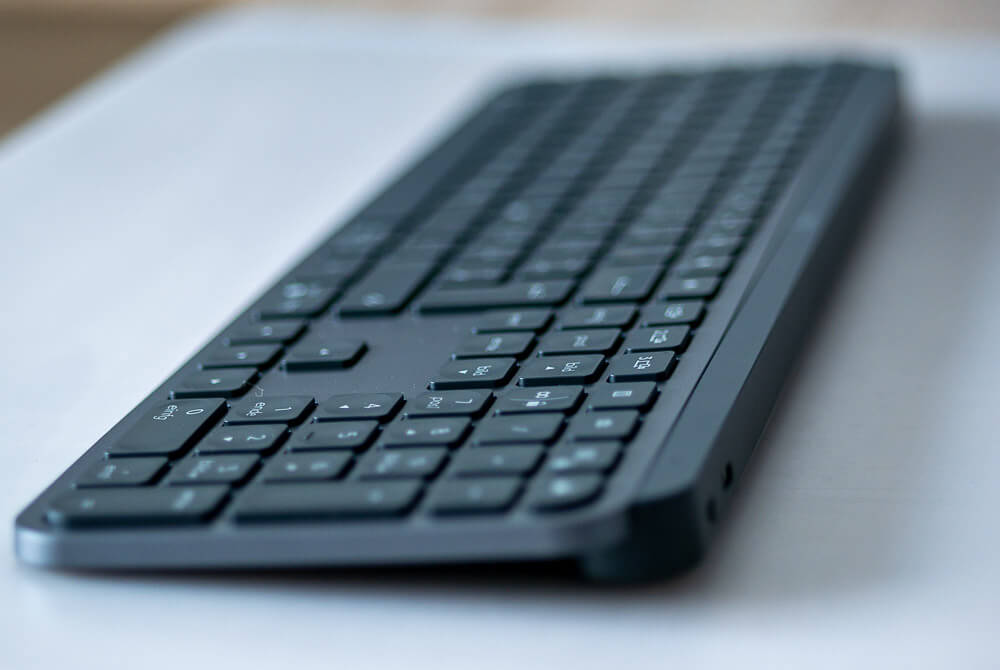
Almost six years ago I reported on the combination of the Logitech MX Keys and the corresponding mouse MX Master 3. That’s quite a long time for a keyboard and mouse combination. I actually still have the keyboard mentioned in the article at the time. In the meantime, however, it shows the first signs of aging, as the built-in battery no longer lasts so long. However, this alone would not have been a decisive reason for me to switch to a new model.
Rather, it was the MX Master 3, which after six years now looks a bit worn out. Various cleaning attempts to restore the surface to a respectable state have more or less failed. Since the prices have also risen slightly in the meantime, I first tried to get along with the MX Master 3S. I ordered it, but was even less enthusiastic about the surface than with the MX Master 3. That’s why I didn’t even want to wait and see what it would look like after three or four years of use.
Selection
The choice finally fell on the new MX Master 4. At around 120 euros, it is anything but cheap for a mouse – to put it mildly. I chose the Logitech MX Keys Mini as a keyboard because I don’t really need the function keys or the numeric keypad.
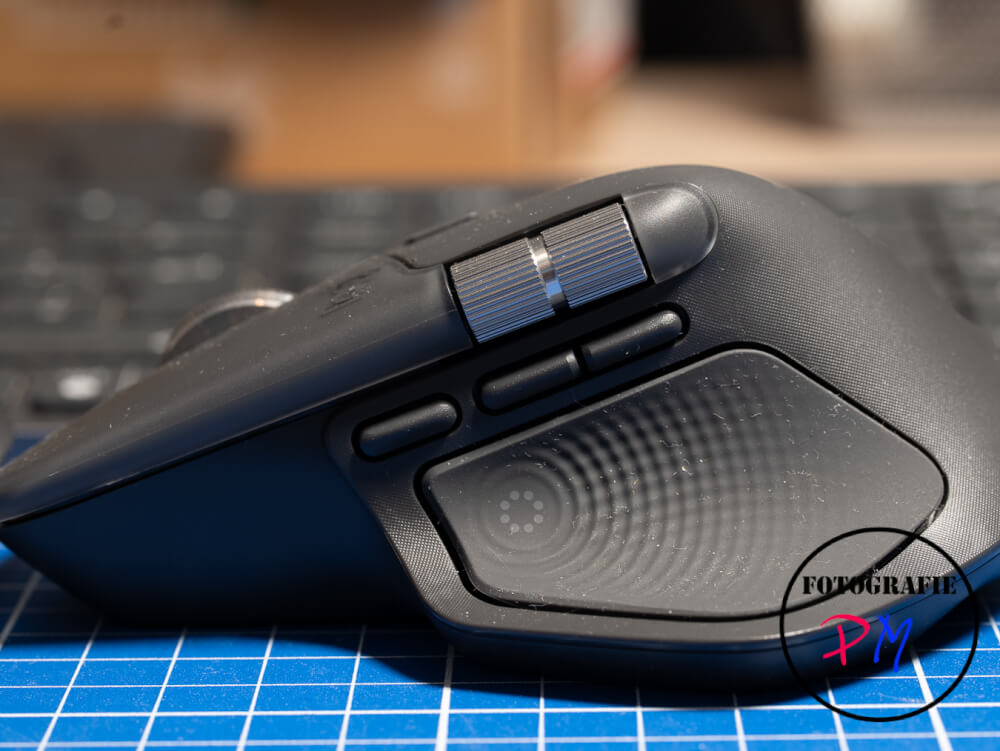
The MX Keys Mini requires almost as much space as the actual writing surface of the large MX Keys. However, the separate buttons for “Pos1”, “Image on”, “Image down” and similar functions are missing. Also, the shift keys for the three connected devices are no longer available as separate buttons. Of course, the Mini also eliminates the numeric keypad.
In the MX Keys Mini, the shift keys for the still possible three devices were placed on the function keys F1 to F3. However, these can be used again as classic function keys via the key combination Fn + Esc.
The change of getting used to was not difficult, because I have been using Keychron K3 as a mechanical keyboard for some time, especially on the Macbook.
Special keys
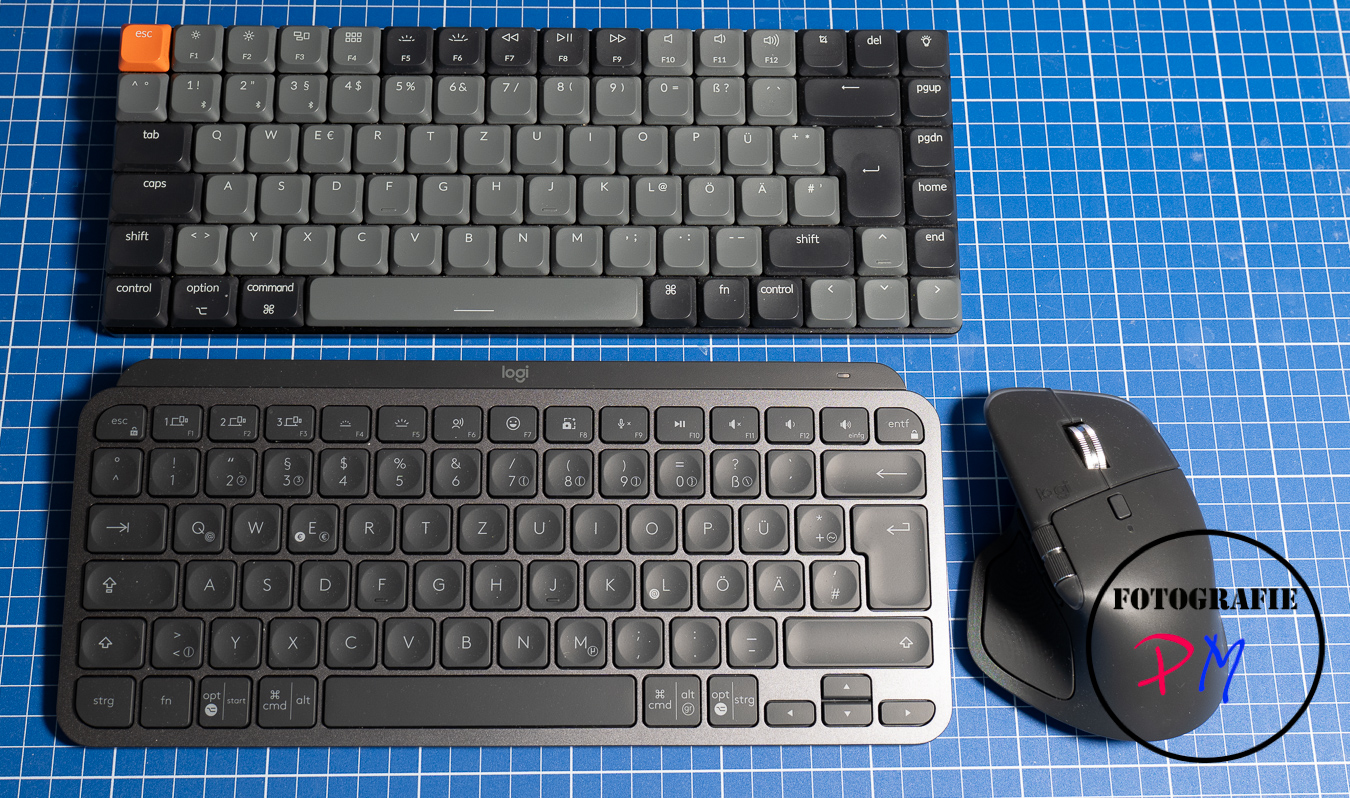
The arrangement of the special keys has also been changed compared to the large MX keys. Although there are still mainly media buttons, for example, the recording button can now be found on F6, while F7 offers direct access to the emojis.
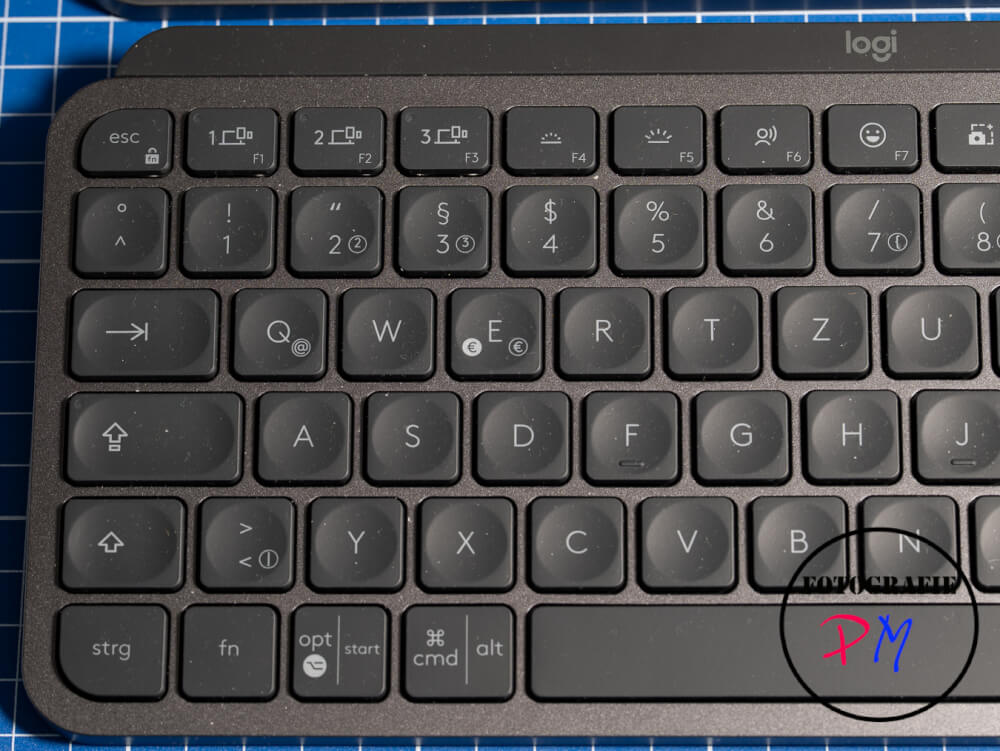
With the MX Master 4, which has become significantly more expensive compared to the previous model, the price difference to the MX Master 3S is just under 40 euros. An additional button has been added, which can also be freely assigned via the Logitech Options software.
Otherwise, the mouse has essentially remained unchanged. New, however, is that the lower thumb area is now clearly marked and – depending on the selected settings – can give haptic feedback. This means that a slight vibration is triggered as soon as an action has been performed. Depending on the application, this can be quite useful. However, you have to be aware that this function should slightly shorten the battery life.
Why the MX4 instead of the MX3S
What ultimately moved me to switch from the MX Master 3S, which I returned, to the MX Master 4, was above all the more pleasant material. It at least gives the impression that even with sweaty hands it does not get as sticky as it is with my now six-year-old MX Master 3. Whether this impression is confirmed in the long term remains to be seen.
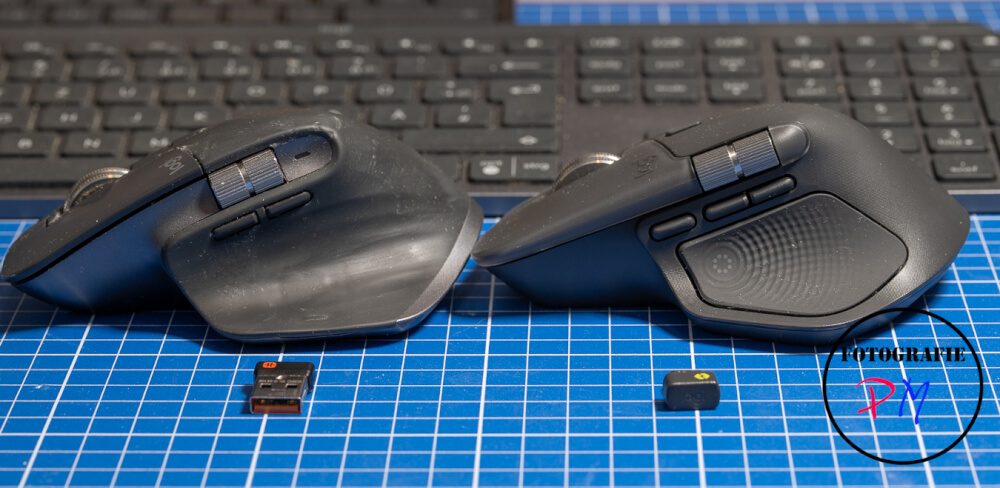
Nevertheless, it must be noted critically that this combination of keyboard and mouse costs a total of more than 200 euros. This is without a doubt a very high price.
Logitech Options Software
However, the numerous setting options available via the Logitech Options software can only be used on Windows and macOS. Unfortunately, a Linux version or a corresponding support is sought in vain.
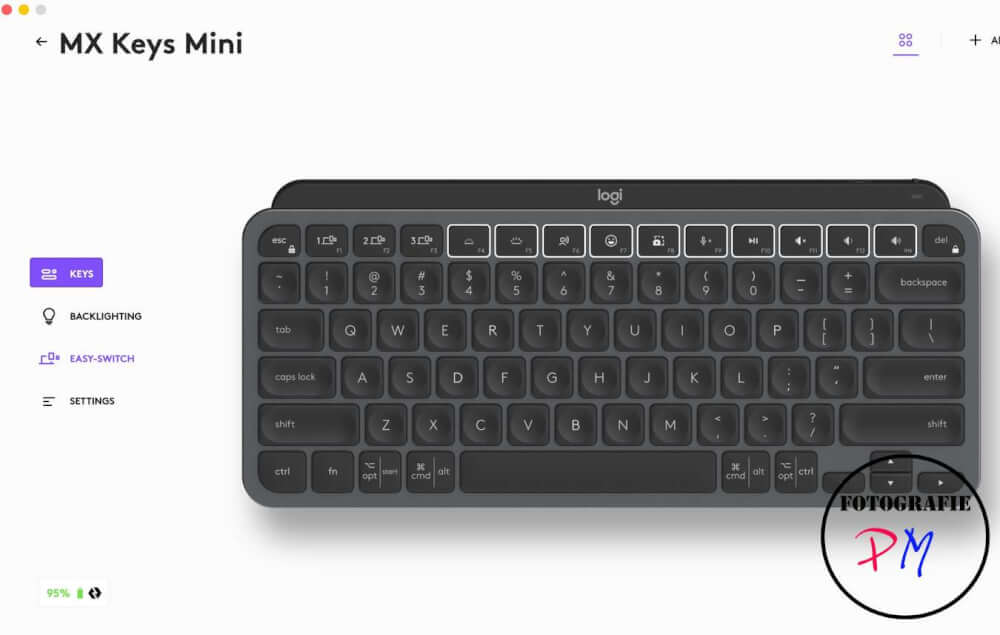
I have not yet tried the possibility to use the additional thumb button with haptic feedback differently depending on the application used. This is certainly a topic that needs to be dealt with a little more intensively. At the same time, if possible, you want to use the same keys as uniformly as possible in all applications.
A further disadvantage of application-dependent key assignment is that the habituation effect is completely lost when switching to another mouse.
Nevertheless, I can well imagine using these functions sensibly in Lightroom, Photoshop or DaVinci Resolve, for example. Because both the MX Keys Mini and the MX Master 4 are so compact, they can be easily transported together with a MacBook or MacBook Air.
The connection
In the meantime, the connection of both the keyboard and the mouse runs via a so-called Bolt receiver, which is equipped with a USB-C connection. This should be faster and above all safer than the older Unifying Receiver of the old MX Keys.
A receiver is also included with the Master MX4, but not with the keyboard. This can now be seen as an advantage or at the same time as a disadvantage.
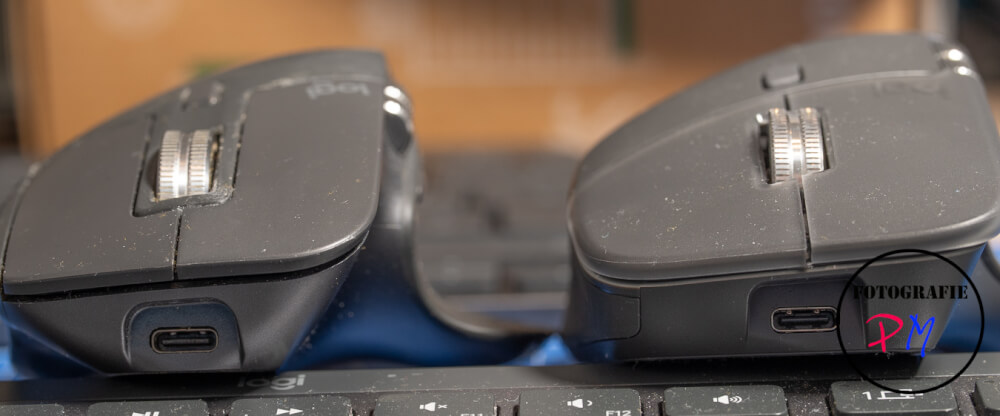
But outside the Logitech’s own receiver, you have the possibility to connect devices via Bluetooth to an end device.
In addition to Bluetooth, the Keychron keyboard only has the option of a cable connection via USB. However, this also has its advantages.
Conclusion
Despite the rather high price of the combination, I am satisfied to have taken the step after almost 6 years, especially since slowly but surely the batteries also noticeably limitations. That would not be a problem here at home, because you can use both the keyboard and the mouse, even if it is loaded.
ciao tuxoche


