Ivanky 20-in-1 Fusion Dock 1

In the past, I purchased—and subsequently returned—a Thunderbolt dock from Wavelink, among others. While that dock did allow for connecting two monitors via HDMI or DisplayPort, this functionality only worked if the corresponding display drivers were installed on the MacBook. However, these drivers came with a significant drawback: specifically on my LG 4K monitor, the text appeared far too small, and display scaling effectively did not work at all. Consequently, the dock went back.
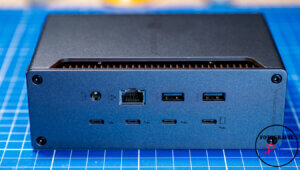
Next, I tried out the more expensive Thunderbolt dock from UGreen. This presented no difficulties regarding the monitors, as they connect directly via the dock’s Thunderbolt ports. There were also no issues with scaling menus or text. In that respect, I was satisfied. However, of the four ports available on the dock, one is required as a downlink connection to the MacBook itself.
Each monitor requires its own Thunderbolt port; thus, in a dual-monitor setup, only a single Thunderbolt port remains available—for instance, to connect an external drive. Ultimately—despite the relatively high price tag—this meant I didn’t end up with any more available or spare ports than if I had simply connected everything directly to the MacBook Pro. After all, I can connect the LG 4K monitor via USB-C—which simultaneously powers the MacBook—and then connect the Dell monitor via HDMI, while still having one port free to plug in an external Thunderbolt enclosure.
If you’re interested, you’re also welcome to check out the video I created on this topic:
Purely by chance, I then stumbled upon several reviews of the Evane Fusion Max dock, which looked very promising. I purchased this dock—even though it is “only” a Thunderbolt 4 dock—and put it to the test. The manufacturer markets this dock exclusively as a “MacBook-only” device because it features a dual-connector design that fits specifically into the two adjacent Thunderbolt ports found on models such as the MacBook Pro or MacBook Air.
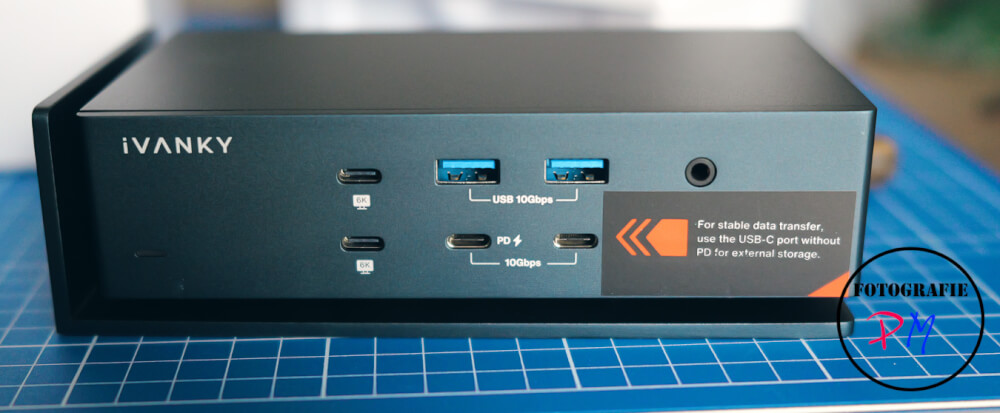
However, the key point here is that while the dock does require two connectors to occupy the two ports on the MacBook, it also offers two additional ports—should you wish to use them—for connecting two external monitors. Furthermore, even with this configuration, several Thunderbolt ports remain available on the front of the dock, allowing you to connect other peripherals—such as an external Thunderbolt drive—as needed.
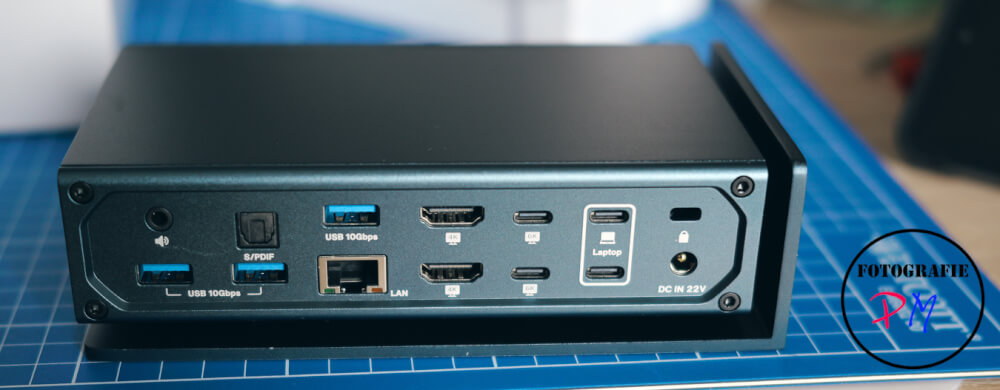
Despite this setup, I still have several spare USB-A and USB-C ports available—each capable of operating at speeds of 10 Gb/s. This allows me to connect my PodMic microphone, my Elgato Stream Deck, and—if I choose—a wired keyboard and mouse. Additionally, there are dedicated ports available for other peripherals, such as a 5 Gb/s network adapter. (As I mentioned earlier, I unfortunately do not utilize the dock’s built-in 2.5 Gb/s Ethernet port, opting instead to use my separate 5 Gb/s network adapter.)
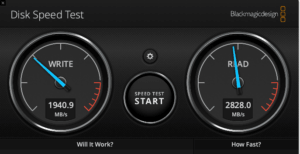
Overall, this dock is highly satisfactory; it meets all my requirements. I have ample ports at my disposal, can drive multiple monitors without the need for additional driver software, and encounter absolutely no issues—for instance, regarding display scaling. As previously noted, Ivanky—the manufacturer—markets this Thunderbolt dock specifically as a “Mac-only” device. However—and I have personally verified this using my Windows 11 PC—you can easily connect this dock to a Windows PC by using two USB-C extension cables. When connected in this manner, the dock functions just as flawlessly; the only difference is that my Windows PC lacks a native Thunderbolt port, meaning the connection is limited to a maximum speed of 10 Gb/s via USB-C. That said, we naturally still face the situation where external drives connected to the dock are slower than those connected directly to a MacBook port—though


