Enhance old and new videos with AIArty Video Enhancer
If you’ve been filming for a while, you’ll certainly find video clips in your archive with low resolution, noise due to high ISO, and clips that meet all the criteria.
Introduction

My first steps in video editing were with clips shot in 720p or Full HD, back then with cameras like the Canon 5D Mark II. You might want to update such clips to current standards, such as 4K.
After using Topsz Denoise for a long time, I initially wanted to stick with Topsz for video as well. Unfortunately, Topsz increased their prices quite significantly, so it wasn’t an option for me as an amateur.
At the beginning of the year, AIArty contacted me to ask if I wanted to test their Video Enhancer. AIArty didn’t specify any requirements, but I’m including an advertisement here because the license was provided to me free of charge.
The Software
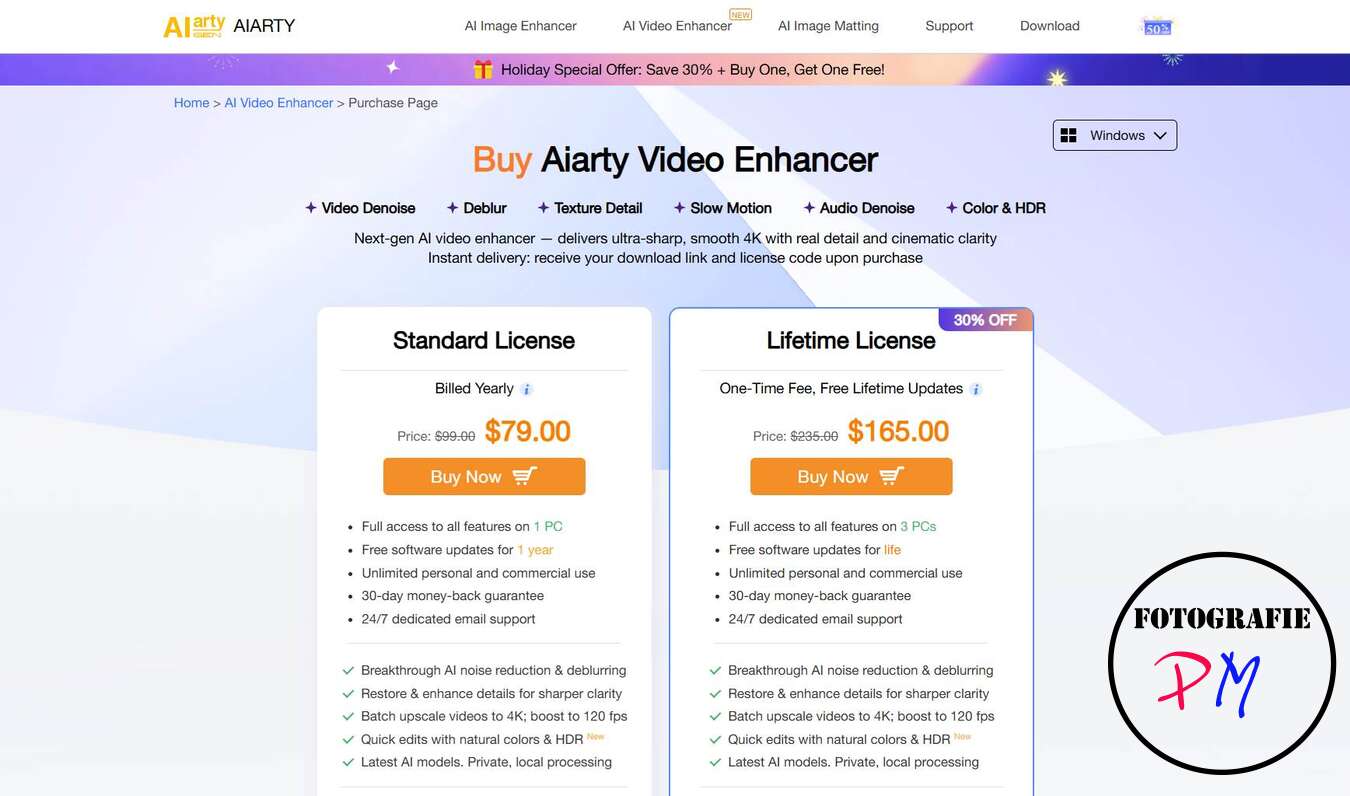
VideoEnhancer is available for both Mac and Windows and is offered in two licenses. The first option is a one-year license with updates, costing just 79$. I think this would be a good choice if you want to convert clips in your archive but then no longer need a program like this.
There’s also a lifetime license, which costs $165 and can be installed on up to three devices.
I’ve also recorded a video about it:
VIDEO
The Interface
The interface is clearly structured, and it’s easy to find your way around.
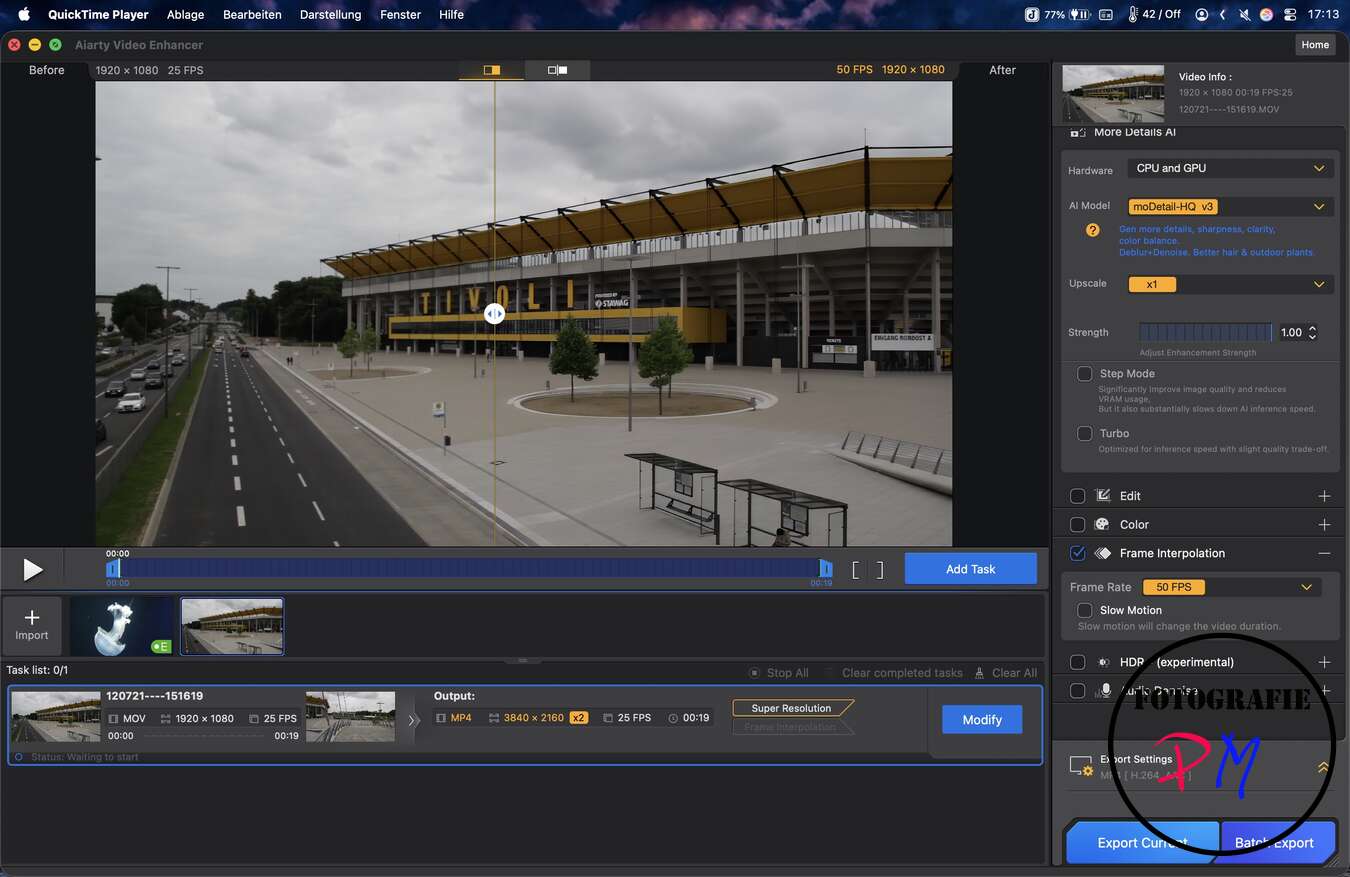
The main focus is, of course, video enhancement and, if necessary, upscaling to, for example, 4K. When you drag a clip into the window, a preview image is immediately optimized using the selected AI model.
The results are truly impressive. Here’s an example of a Full HD clip that has gained considerable sharpness and detail through optimization.
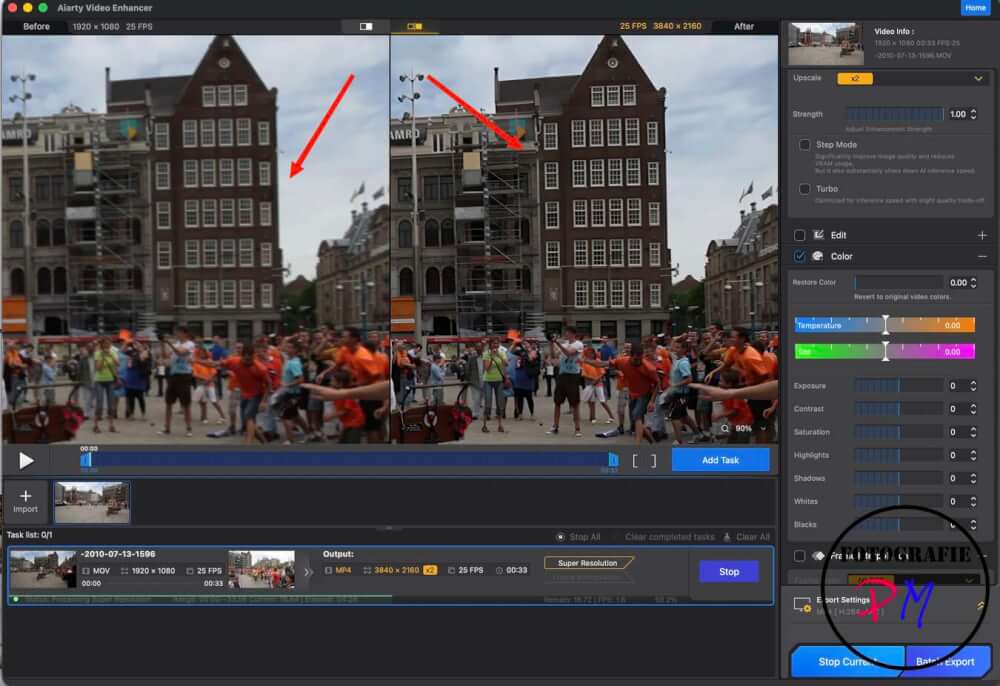
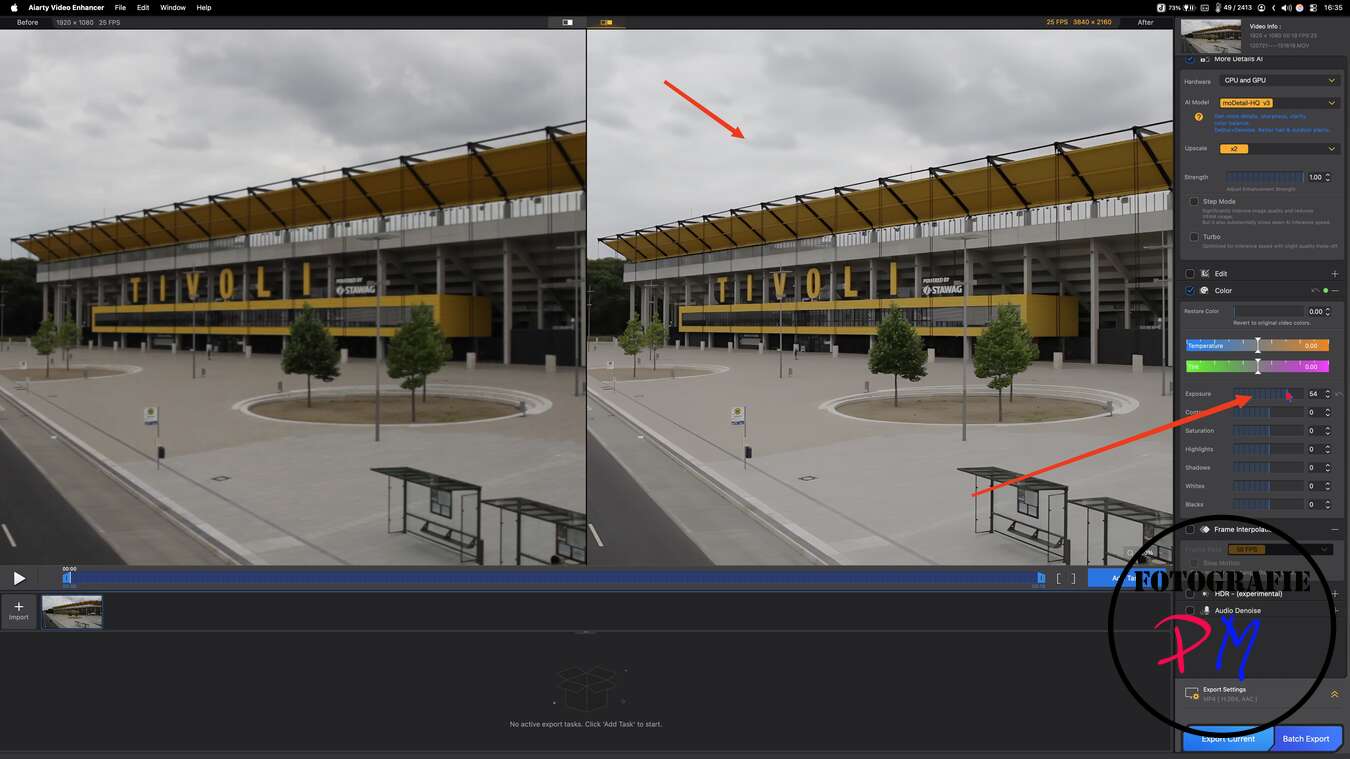
In addition to optimization, for which a total of three AI models are available, the clips can also be edited. For example, colors and contrasts can be modified, and the video clip can be cropped.
Exporting
Once you’ve decided on a target size and made any necessary corrections to color, contrast, etc., you can export the video(s).
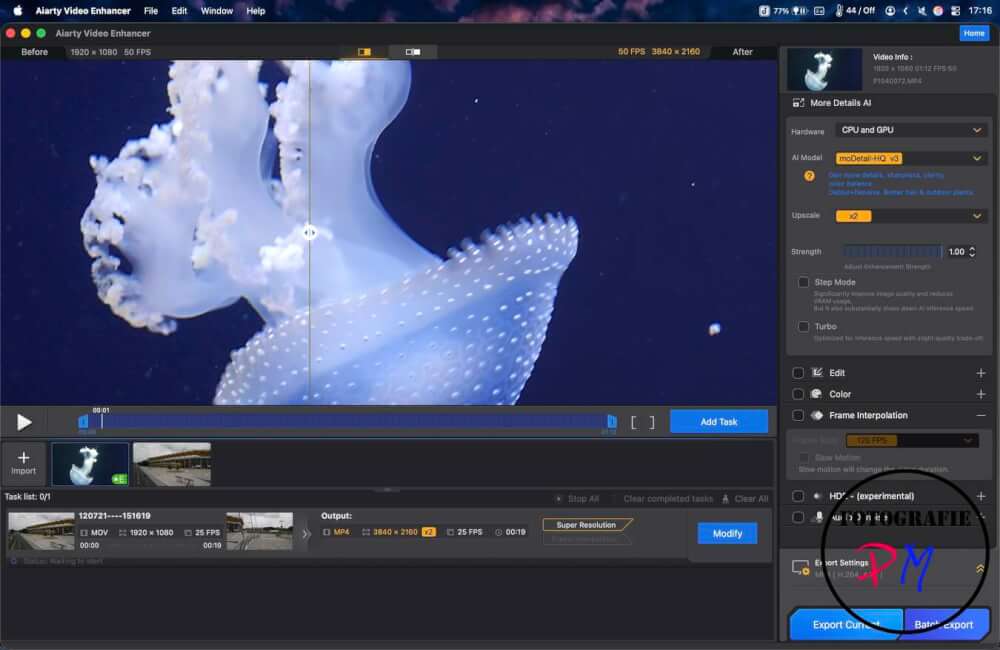
Exporting takes a bit longer because, depending on the frame rate, the AI has to optimize 25-30 frames per second of video. For an approximately 33-second clip in HD, optimizing and upscaling to 4K took 3 minutes and 58 seconds on my Windows PC and 8 minutes and 41 seconds on my MacBook Pro.
I know that MacBooks are a bit slower than Windows PCs in DaVinci Resolve, for example, but we’re talking about more than double the time here, which leads me to suspect that the program might not yet be sufficiently optimized for the Mac CPU.
Conclusion
The program offers even more features, such as generating slow motion from a normal clip or improving audio tracks with significant background noise.
The program is easy to use and offers all the necessary optimization functions (sharpening, denoising, upscaling).
Feel free to try it out and download a trial version (which, however, adds a watermark) or get the 1-year license for Mac or Windows if you want to bring your video archive up to date.
ciao tuxoche


