Spice up your pictures with AIArty Image Enhancer
In photography, there’s also software that can improve less-than-sharp images or apply specific shooting techniques. It can also reduce noise in images taken at high ISO settings.
Introduction

A few weeks ago, I introduced you to AI VideoEnhancer. This time, I’ll be discussing its counterpart for photography: AIArty Image Enhancer. Just like VideoEnhancer, it can sharpen or upscale lower-resolution images and reduce noise in high-ISO shots.
I’ve recorded a video with examples:
The software is available for both Windows and Mac OS systems and comes in two licensing models. There’s a one-year license, which is more affordable. This is a good option if you want to enhance and save a limited number of images and then no longer need the software. The second option is a perpetual license, which can also be installed on multiple devices, unlike the one-year license.
The Interface
The interface looks practically identical to that of Video Enhancer, except that, for example, five enhancement models are offered here. Naturally, some controls are also slightly different, since audio and other features are not used.
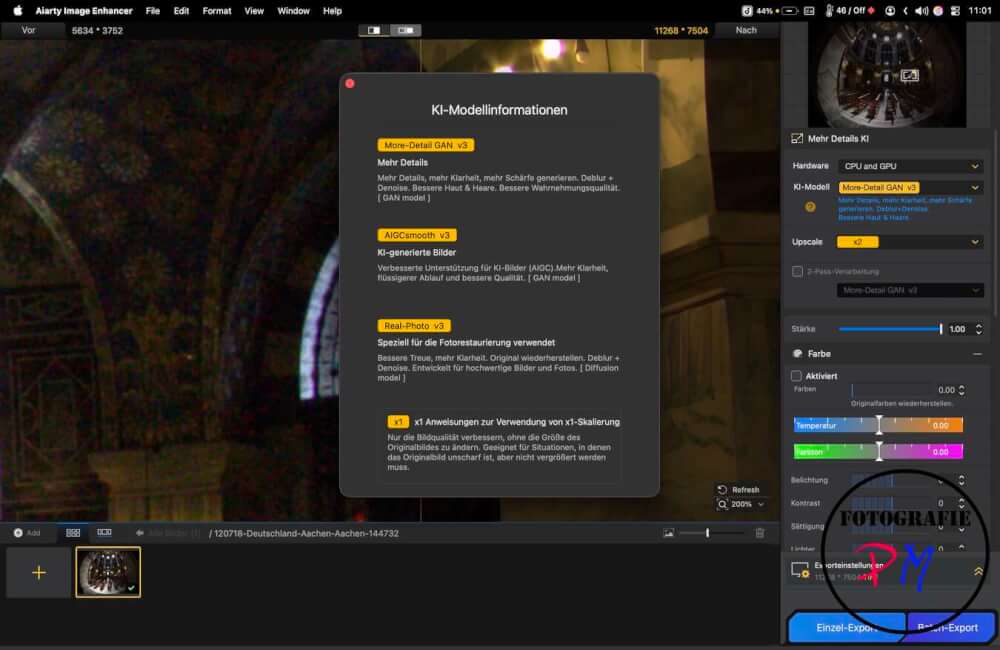
What remains the same is that immediately after loading a suitable image, the AI attempts to enhance it once the corresponding model has been downloaded.
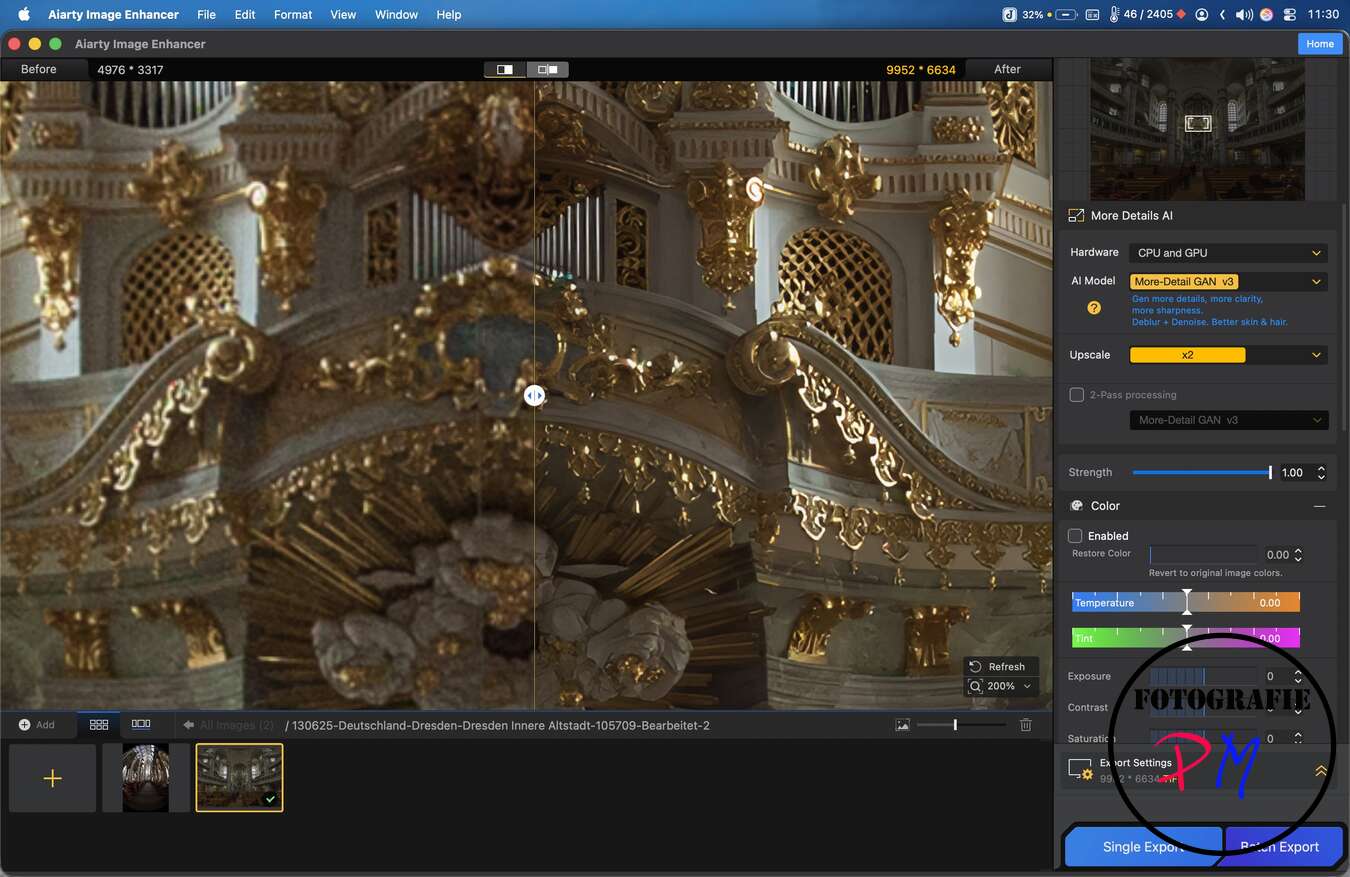
Here, too, the magnification can be set, although in my experience, anything more than 2x magnification should generally be avoided. Of course, there are also settings to adjust things like color, contrast, saturation, etc.
It’s also possible to add text to the image.
After downloading the model or enhancing the image, you can export it just like in Video Enhancer. Various formats are available. If you plan to further process the image, you should export it in DNG or 16-bit TIFF format. The magnification can also be set here, but in my experience, it should generally be avoided.
A Minor Bug
Although included in the list of supported input formats, I encountered problems with RAW files from Lumix cameras during my tests. While RW2 files from older cameras, such as my Lumix G9, could be processed, RAW files from more modern cameras, like the Lumix S9 or Lumix S1R II, only displayed purple stripes.
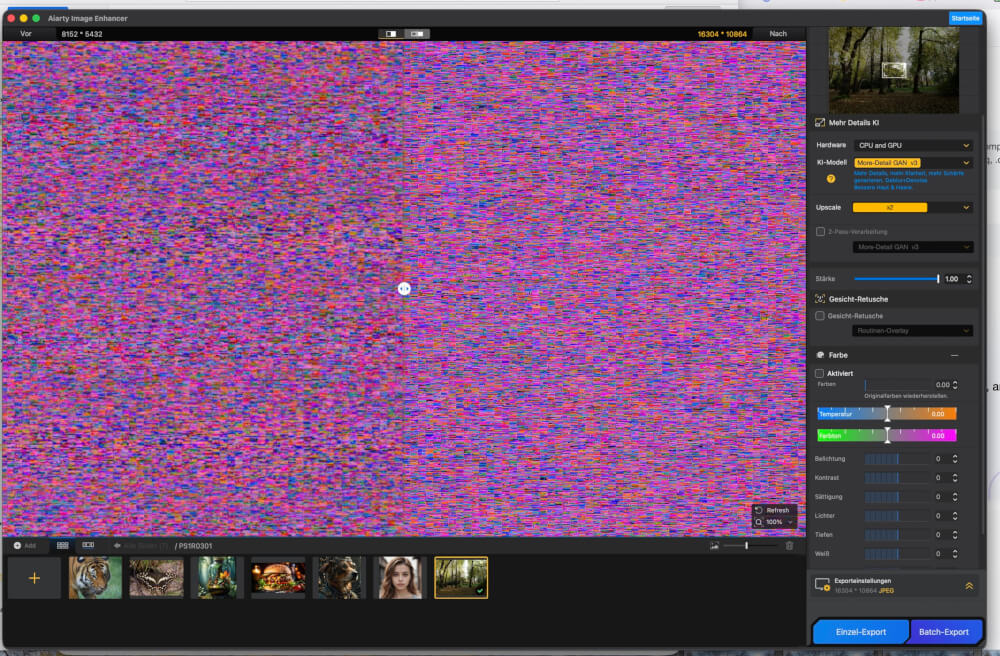
The bug has already been reported to the developer, and I sincerely hope it will be fixed soon. Until then, I’m using 16-bit TIFF files as an input format.
Conclusion
The program is easy to use and offers all the necessary optimization functions (sharpening, noise reduction, upscaling).
Feel free to try it out and download a trial version (which, however, adds a watermark) or purchase the 1-year license for Mac or Windows if you want to improve your own archive.
ciao tuxoche


